
Productivity & Workflow🤖claude🌐universal
Claude Mermaid MCP Server
MCP Server to previewing mermaid diagrams
Quick Start
Install this Skill
npx skills add veelenga/claude-mermaid# Claude Mermaid MCP Server
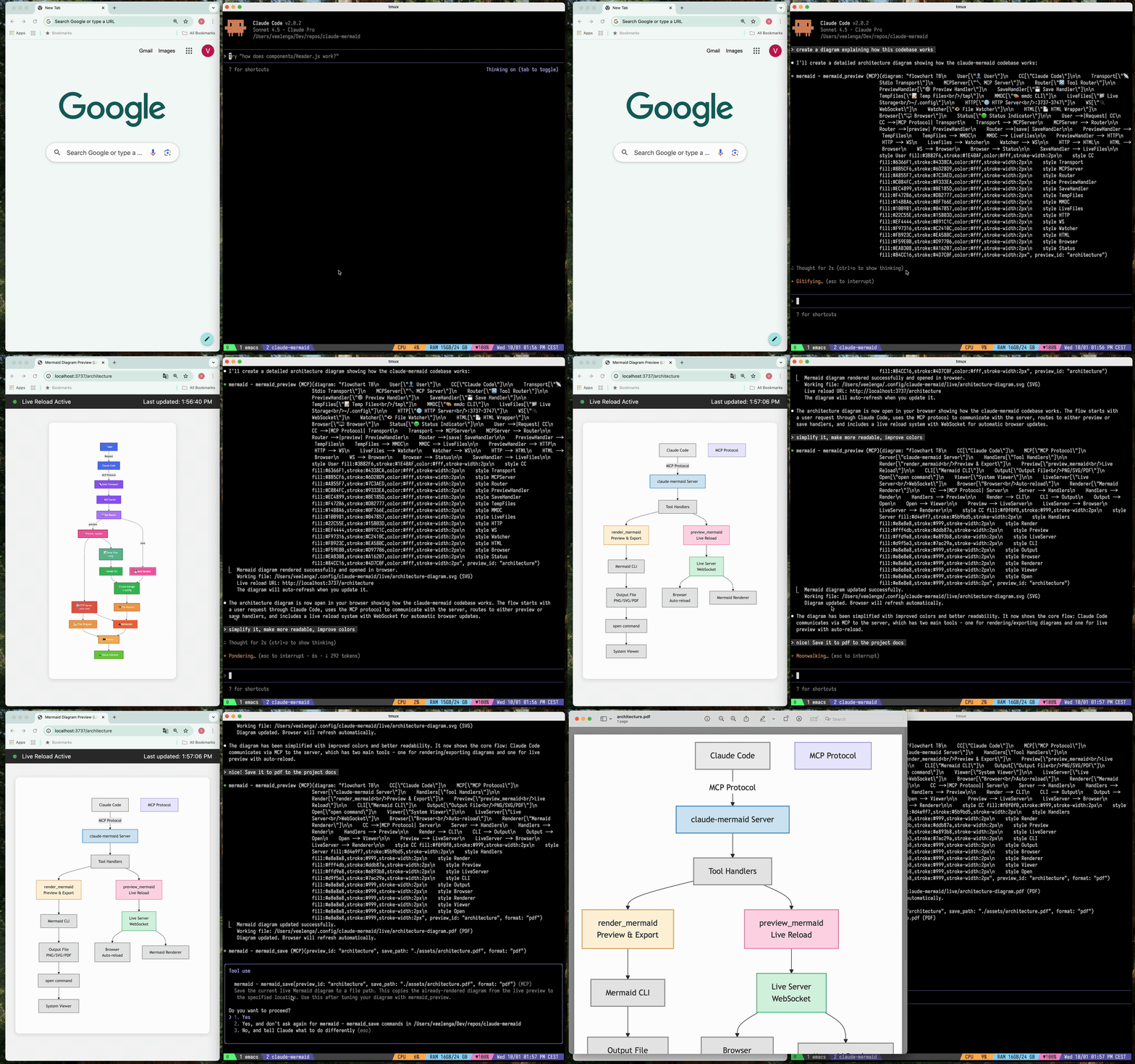
MCP server for rendering Mermaid diagrams in Claude Code with **live reload** functionality and a built-in skill for expert guidance.
Automatically renders diagrams in your browser with real-time updates as you refine them. Perfect for iterative diagram development and documentation workflows.
## ✨ Features
- 🔄 **Live Reload** - Diagrams auto-refresh in your browser as you edit
- 🎨 **Multiple Save Formats** - Export to SVG, PNG, or PDF
- 🌈 **Themes** - Choose from default, forest, dark, or neutral themes
- 📐 **Customizable** - Control dimensions, scale, and background colors
- 🪄 **Interactive Preview** - Pan diagrams by dragging, zoom with browser controls, reset position with one click
- 🗂️ **Multiple Previews** - Use `preview_id` to work on multiple diagrams simultaneously
- 💾 **Persistent Working Files** - Live previews are stored under `~/.config/claude-mermaid/live`
- 🤖 **Built-in Skill** - Includes a Claude skill with best practices and expert guidance for creating diagrams
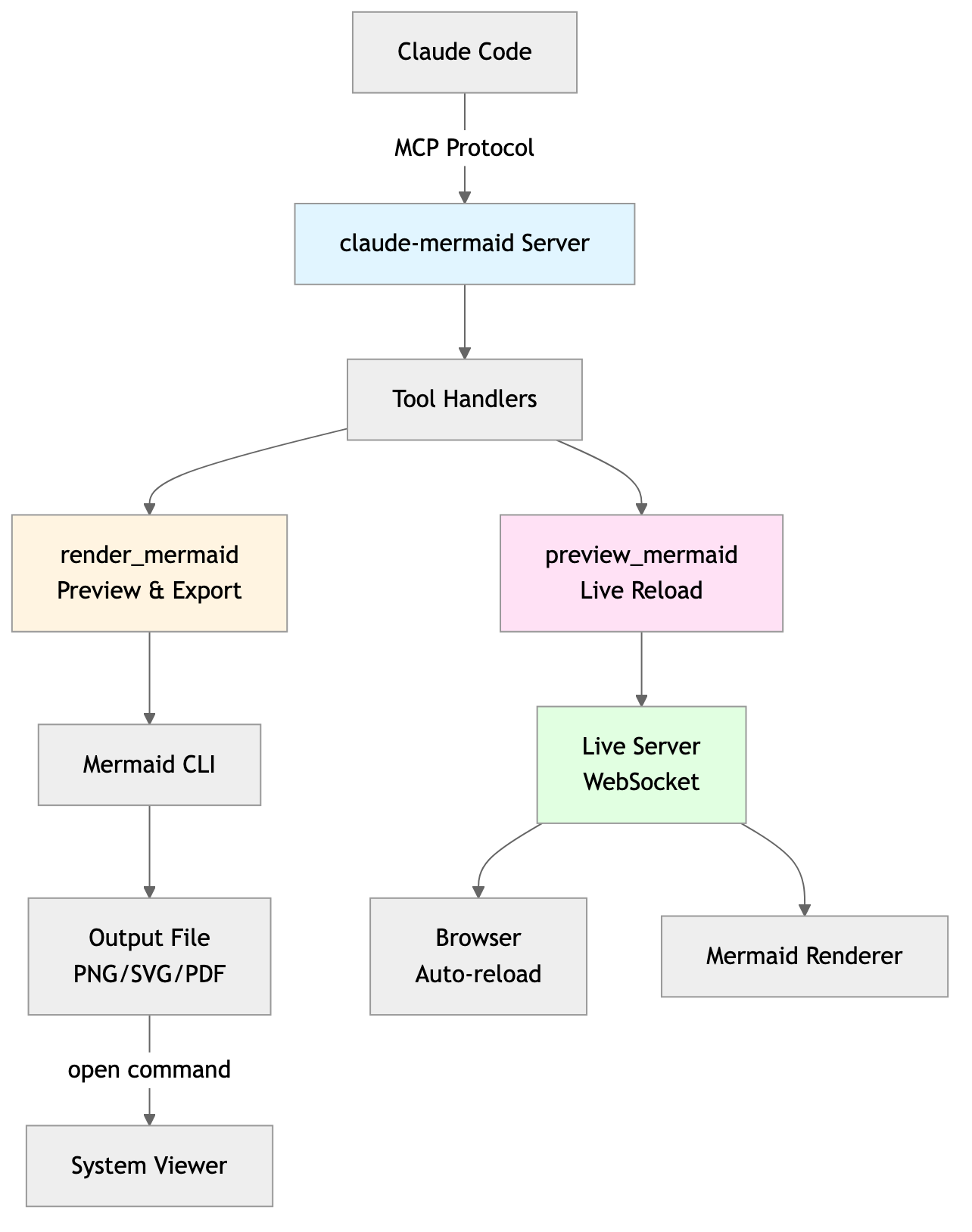
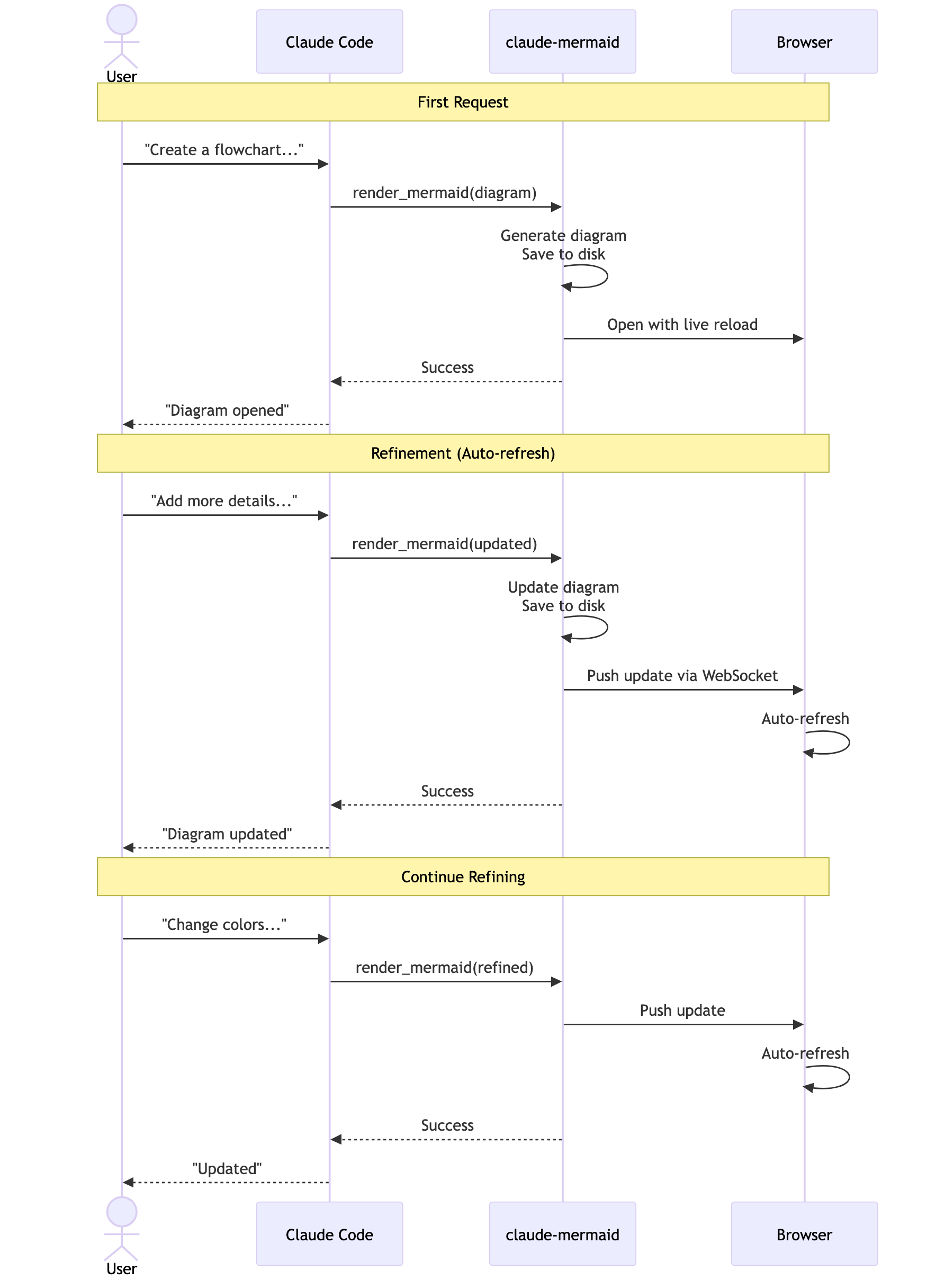
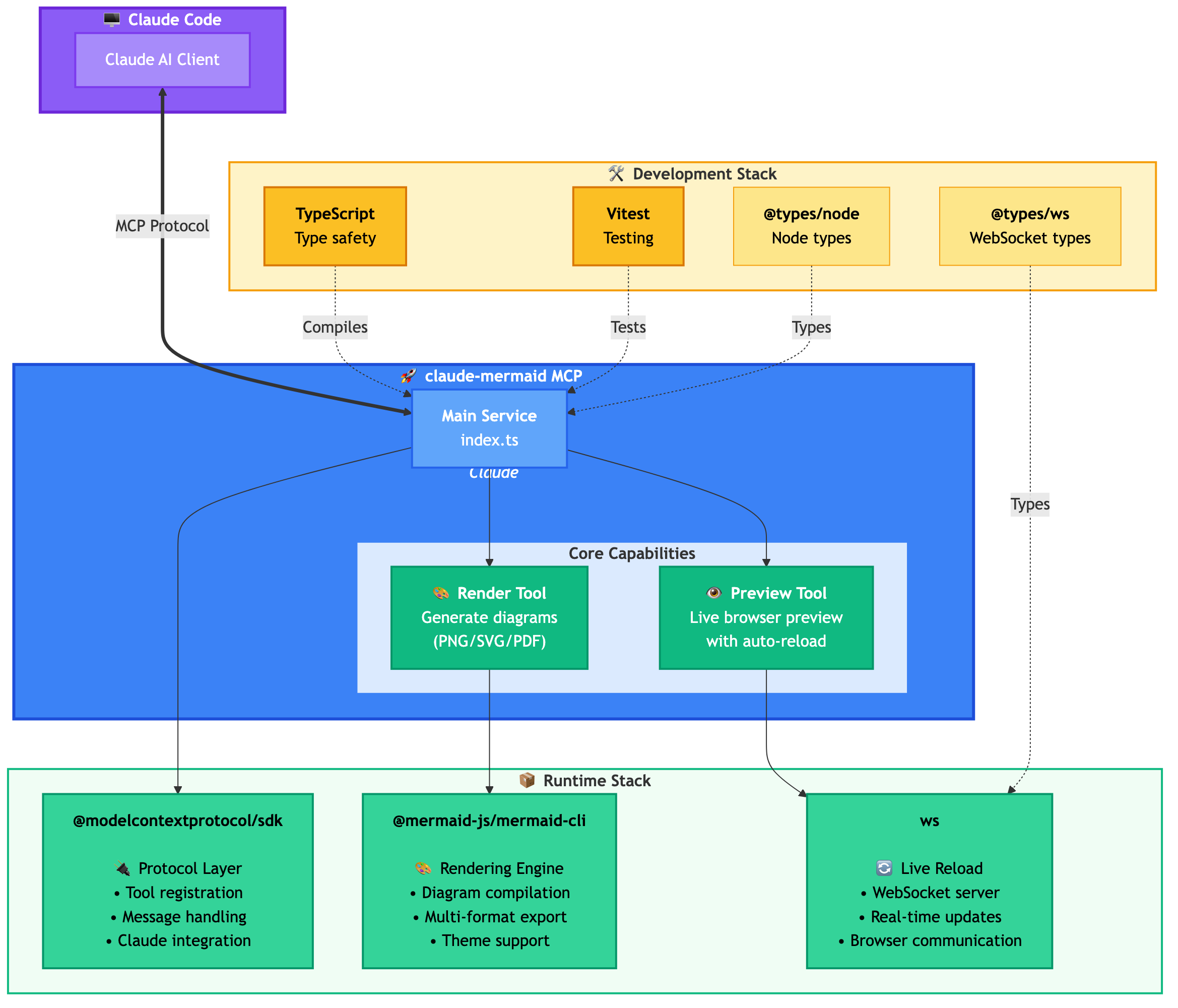
## Architecture
<details>
<summary>Project Architecture Diagram</summary>
</details>
<details>
<summary>User Workflow Diagram</summary>
</details>
<details>
<summary>Dependencies Diagram</summary>
</details>
## 🚀 Quick Start
### 1. Install
**Plugin Install (Recommended)**
In Claude Code, add the marketplace and install the plugin:
```bash
/plugin marketplace add veelenga/claude-mermaid
/plugin install claude-mermaid@claude-mermaid
```
Then restart Claude Code to activate the plugin.
**From npm:**
```bash
npm install -g claude-mermaid
```
**From source:**
```bash
git clone https://github.com/veelenga/claude-mermaid.git
cd claude-mermaid
npm install && npm run build && npm install -g .
```
### 2. Verify Installation
**Plugin install:** The MCP server is configured automatically. Just verify:
```bash
/mcp
```
You should see `mermaid` in the MCP server list.
**npm install:** Configure the MCP server manually:
```bash
claude mcp add --scope user mermaid claude-mermaid
```
Then verify:
```bash
claude mcp list
```
You should see `mermaid: claude-mermaid - ✓ Connected`
## 🔌 Other MCP Client Configurations
While this server is optimized for Claude Code, it can work with any MCP-compatible client. Here's how to configure it for other popular tools:
<details>
<summary><strong>Codex</strong></summary>
Add to your Codex MCP settings file (`~/.codex/mcp_settings.json`):
```json
{
"mcpServers": {
"mermaid": {
"command": "claude-mermaid"
}
}
}
```
Or configure via Codex CLI:
```bash
codex mcp add mermaid claude-mermaid
```
</details>
<details>
<summary><strong>Cursor</strong></summary>
Add to your Cursor MCP config file (`.cursor/mcp.json` or settings):
```json
{
"mcpServers": {
"mermaid": {
"command": "claude-mermaid"
}
}
}
```
Or use Cursor's settings UI:
1. Open Cursor Settings (Cmd/Ctrl + ,)
2. Navigate to MCP Servers
3. Add a new server with command: `claude-mermaid`
</details>
<details>
<summary><strong>VSCode with Cline Extension</strong></summary>
If using the [Cline extension](https://github.com/cline/cline) for VSCode:
1. Open VSCode settings (Cmd/Ctrl + ,)
2. Search for "Cline MCP"
3. Add to MCP Settings JSON:
```json
{
"mcpServers": {
"mermaid": {
"command": "claude-mermaid"
}
}
}
```
</details>
<details>
<summary><strong>Windsurf</strong></summary>
Add to Windsurf's MCP configuration file:
```json
{
"mcpServers": {
"mermaid": {
"command": "claude-mermaid"
}
}
}
```
Configuration location varies by platform:
- **macOS:** `~/Library/Application Support/Windsurf/mcp.json`
- **Linux:** `~/.config/windsurf/mcp.json`
- **Windows:** `%APPDATA%\Windsurf\mcp.json`
</details>
<details>
<summary><strong>Gemini CLI</strong></summary>
Add to Gemini CLI's MCP configuration file (`~/.gemini/mcp.json`):
```json
{
"mcpServers": {
"mermaid": {
"command": "claude-mermaid"
}
}
}
```
Or use the Gemini CLI to configure:
```bash
gemini config mcp add mermaid --command claude-mermaid
```
</details>
<details>
<summary><strong>Other MCP Clients</strong></summary>
For any MCP-compatible client, use the standard configuration:
```json
{
"mcpServers": {
"mermaid": {
"command": "claude-mermaid"
}
}
}
```
The command `claude-mermaid` should be available in your PATH after installation.
**Note:** Some clients may require the full path to the executable:
- Find the path: `which claude-mermaid` (Unix/macOS) or `where claude-mermaid` (Windows)
... (truncated)Repository
49stars
8forks
Details
Related Skills
More productivity & workflow skills you might like
Excel Automation
Productivity & WorkflowExcel Automation: create workbooks, manage worksheets, read/write cell data, and format spreadsheets via Microsoft Excel and Google Sheets integration
✨gemini🤖claude💬gpt⌨️cursor
77.0k
9.1k
View
Attio Automation
Productivity & WorkflowAutomate Attio CRM operations -- search records, query contacts and companies with advanced filters, manage notes, list attributes, and navigate your relationship data -- using natural language through the Composio MCP integration.
✨gemini🤖claude💬gpt⌨️cursor
77.0k
9.1k
View
Ashby Automation
Productivity & WorkflowAutomate recruiting and hiring workflows in Ashby -- manage candidates, jobs, applications, interviews, and notes through natural language commands.
✨gemini🤖claude💬gpt⌨️cursor
77.0k
9.1k
View
Apify Automation
Productivity & WorkflowAutomate web scraping and data extraction with Apify -- run Actors, manage datasets, create reusable tasks, and retrieve crawl results through the Composio Apify integration.
✨gemini🤖claude💬gpt⌨️cursor
77.0k
9.1k
View